Back up the iPhone to your Windows PC or Mac, open the backup in OpenExtract, a free app, and see the shows you followed in Apple Podcasts and every episode you played. Save your subscriptions as an OPML file that most podcast apps can import, or everything as a spreadsheet. Nothing is uploaded.
OpenExtract is an independent open-source app. It isn't made by Apple and has no connection to it.
Apple Podcasts on the iPhone has no way to save the shows you follow as a file. If you want to move to another podcast app, keep a list of what you followed, or find an episode you heard last year, there's nowhere on the phone to get that out. And if you didn't have iCloud sync turned on, or the phone is gone, a backup may be the only place your library and listening history are still kept.
There's another way in. When you back up an iPhone to a computer, the Podcasts app's library goes into that backup: the shows you follow, the ones you played without following or stopped following, and a record of what you listened to. OpenExtract reads it from there, in its own Podcasts section, and saves it as files you keep. It's free, with no trial and no limit on how much you save.
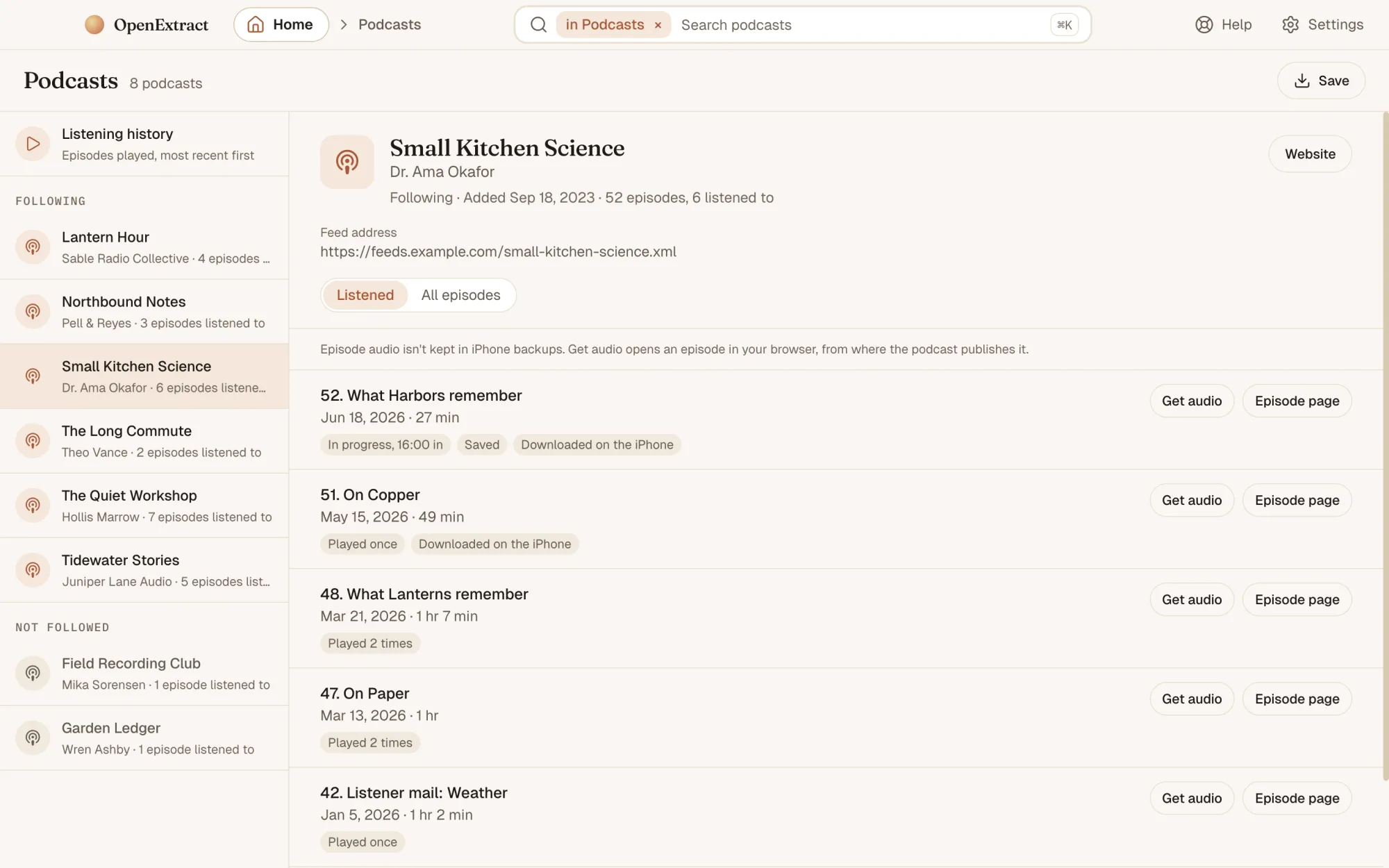
Podcasts, opened from a backupA made-up sample backup in OpenExtract. See every screen.
Who this is for
Moving to another podcast app. Take the shows you follow to Overcast, Pocket Casts or most other podcast apps in one file, instead of searching for each one again.
Podcasts from a phone that's gone. If the iPhone is broken, lost, sold or locked for good, a backup on a computer can still hold its podcast library.
Finding an episode you heard. The listening history goes back as far as the iPhone kept it, newest first, with each episode's show and when you last played it.
A record of what you listened to. A spreadsheet of every show and every episode, with play counts and dates, to keep or sort however you like.
01
Install OpenExtract
Download it for Windows or Mac (Apple Silicon) and install it. There's a Linux version too. It's free, with no account and no trial. The Windows installer is signed by Charles West, the developer; if SmartScreen shows a notice for a new app, choose More info, then Run anyway.
02
Back up the iPhone, or use a backup you have
On OpenExtract's start screen, click Back up my iPhone, connect the phone with a cable, tap Trust on it and enter its passcode if it asks, then choose a folder and start. A backup often takes about half an hour. The Podcasts library is in ordinary and encrypted backups alike, so encryption is up to you; an encrypted backup holds more of the rest, such as call history (here's why encrypted backups are better).
Already backed up with Finder on a Mac, or with the Apple Devices app or iTunes on Windows? OpenExtract lists the backups it finds on the start screen, or you can choose Open a backup folder. Here's where iPhone backups are stored. A backup has the podcasts as they were on the day it was made, so make a new one if you want today's.
03
Open Podcasts
Open the backup (type its password if it's encrypted) and click Podcasts on its home page. Its tile says how many shows there are. If the Podcasts app wasn't used on the iPhone, there's no Podcasts tile. Down the side are Listening history, then the shows under Following, then any others in the library, ones you played without following or stopped following, under Not followed.
04
Look through your shows and history
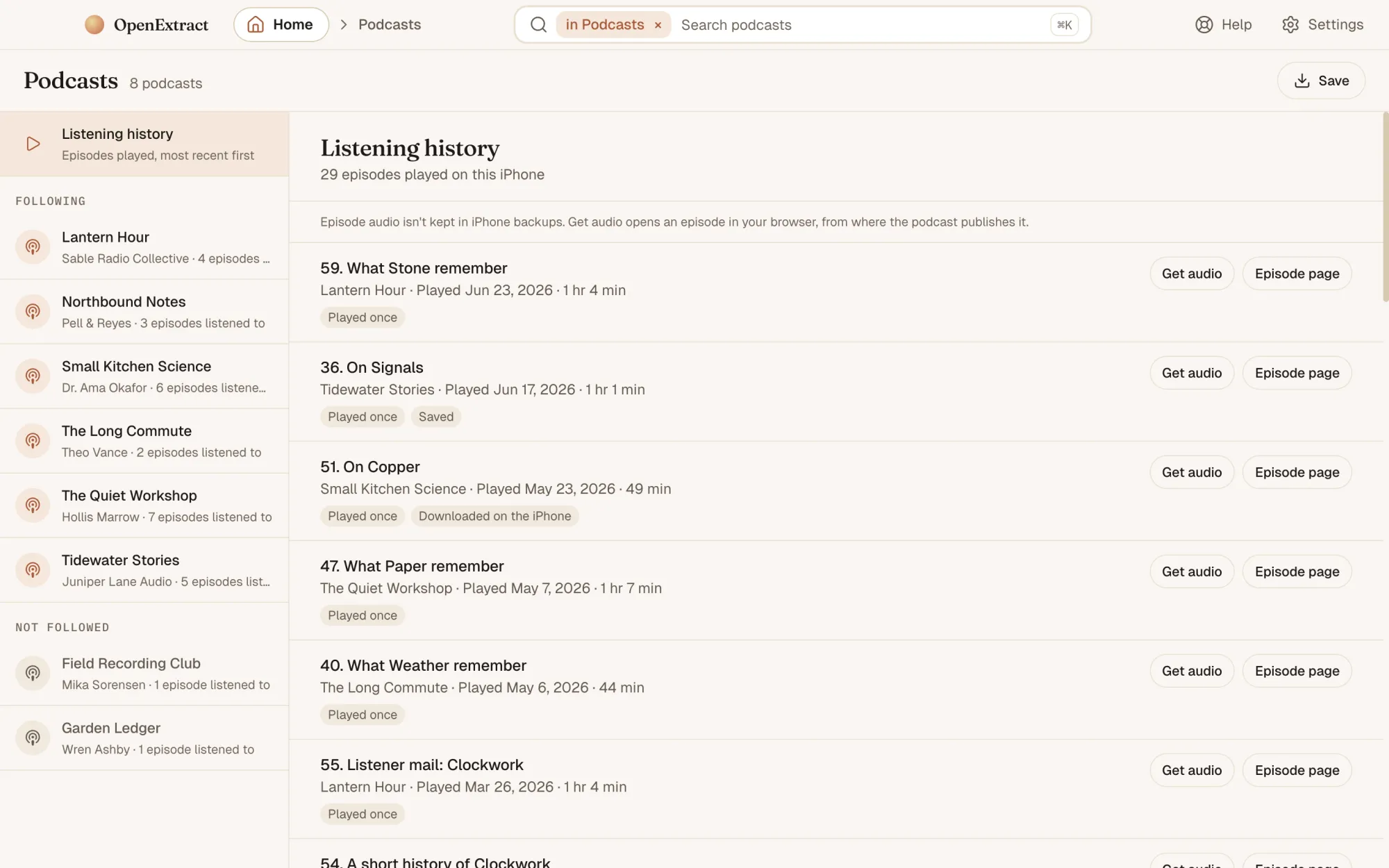
Listening history lists every episode played on the iPhone, most recent first. Click a show to see who makes it, whether you follow it, when you added it, how many episodes it has and how many you listened to, and its feed address, which you can copy. Website opens the show's site in your browser. Under that are its episodes: Listened shows the ones you played, and All episodes shows every episode of the show, played or not.
Each episode has its date and length, and notes such as "Played once", "Played 2 times", "In progress, 16:00 in", "Saved" or "Downloaded on the iPhone". Get audio opens the episode in your browser, from where the podcast publishes it, and Episode page opens its page on the web.
05
Save your subscriptions, or everything
Click Save at the top of the Podcasts screen. Choose Podcast subscriptions (that's the OPML file, for another podcast app) or Spreadsheet, click Save and pick a folder. Saving again never overwrites a file; the new one gets "(2)" added to its name.
To save your podcasts along with everything else, click Save to this computer on the backup's home page, then Save next to Podcasts.
What you get
Podcast subscriptions (OPML) is one file, Podcasts.opml, listing the shows you follow that have a feed address. Most podcast apps can import it, Overcast and Pocket Casts among them: look for an import or OPML option in the app's settings.
Spreadsheet (CSV) is two files that open in Excel, Numbers or Google Sheets: Podcasts.csv, with every show, followed or not, and Podcast episodes.csv, with every episode, when it was last played, how many times it was played and how far in you got, and links to its audio and its web page.
"Listened" means the iPhone recorded a play: a play count, a last-played date, or a place part way through. When you follow a show, Apple Podcasts marks its whole back catalogue as played, including episodes you never heard. OpenExtract doesn't count those, so the history is what you actually listened to.
Listening historyEvery episode played on the iPhone, newest first.
What it can't do
No episode audio. Apple leaves the Podcasts app's downloads out of iPhone backups, so no backup has any episode audio, not even episodes downloaded on the phone. Get audio opens each episode in your browser from where the podcast publishes it instead.
Shows with no feed address can't go into the OPML file, because another app needs the feed address to follow them. They're still in the spreadsheet.
No subscriptions file if you don't follow anything. If the backup has no followed shows, the OPML choice isn't offered, but the spreadsheet still lists every show.
No artwork. Show artwork isn't shown, because the app makes no network requests on its own.
Only Apple Podcasts. Spotify, Overcast, Pocket Casts and other podcast apps aren't read.
Not iCloud. What Apple Podcasts syncs through iCloud isn't read, only what was on the iPhone when the backup was made.
It can't put shows back into Apple Podcasts on a phone. The files are a copy for your computer, and for importing into another app.
Common questions
Can I move my podcast subscriptions to another app? Yes. Click Save on the Podcasts screen and choose Podcast subscriptions (OPML). That saves the shows you follow as one file, which most podcast apps can import, Overcast and Pocket Casts among them. Look for an import or OPML option in the other app's settings. Only shows with a feed address can go in the file.
Can I get the episodes I downloaded on my iPhone? Not from the backup. Apple leaves the Podcasts app's downloads out of iPhone backups, so no backup has any episode audio, even for episodes that were downloaded on the phone. Each episode in OpenExtract has a Get audio button instead: it opens the episode in your browser, from where the podcast publishes it, so you can play it or save it from there.
Does it show my listening history? Yes. Listening history lists every episode played on the iPhone, most recent first, with its show and, where the iPhone recorded it, when it was last played. An episode counts as listened to when the iPhone recorded a play: a play count, a last-played date, or a place part way through.
Why doesn't it count every episode Apple Podcasts marks as played? When you follow a show, Apple Podcasts marks its whole back catalogue as played, including episodes you never heard. OpenExtract leaves those out, so the history shows what you actually listened to. Choose All episodes on a show to see the rest.
Do I need an encrypted backup? No. The Podcasts library is in ordinary backups as well as encrypted ones. If the backup is encrypted, OpenExtract asks for its password when you open it, and the password stays on your computer.
Does it read Spotify, Overcast or Pocket Casts? No. It reads Apple's Podcasts app only. Shows you follow in other podcast apps aren't read.
Does it read my podcasts from iCloud? No. It reads what was on the iPhone when the backup was made, not what Apple Podcasts syncs through iCloud. Make a new backup if you want today's library.
Which versions of iOS does it read? It's been checked on backups from iOS 13, 16, 17 and 26, and versions in between should read the same way. If OpenExtract can't read the Podcasts library in a backup, the Podcasts screen says so and has a button to report the problem.
Does anything get uploaded? No. OpenExtract reads the backup on your own computer and doesn't send it anywhere. It goes online only when you let it: to check for a new version, if you allow it (you can turn that off in Settings); to send a problem report or a thank-you, when you click Send; and on Windows, to install Apple's free Apple Devices app from Microsoft, if you ask it to, for backing up an iPhone. Nothing from inside your backup goes with any of them. The Get audio, Episode page and Website buttons open your own browser; the app itself fetches nothing, which is also why show artwork isn't shown.
Is it really free? Yes. OpenExtract is open source under the MIT license, with no paid tier, no account and no strings attached. The code is on GitHub.
Windows · Mac · Linux
Your podcasts, in files you keep.
Free, open source, and the backup never leaves your computer.