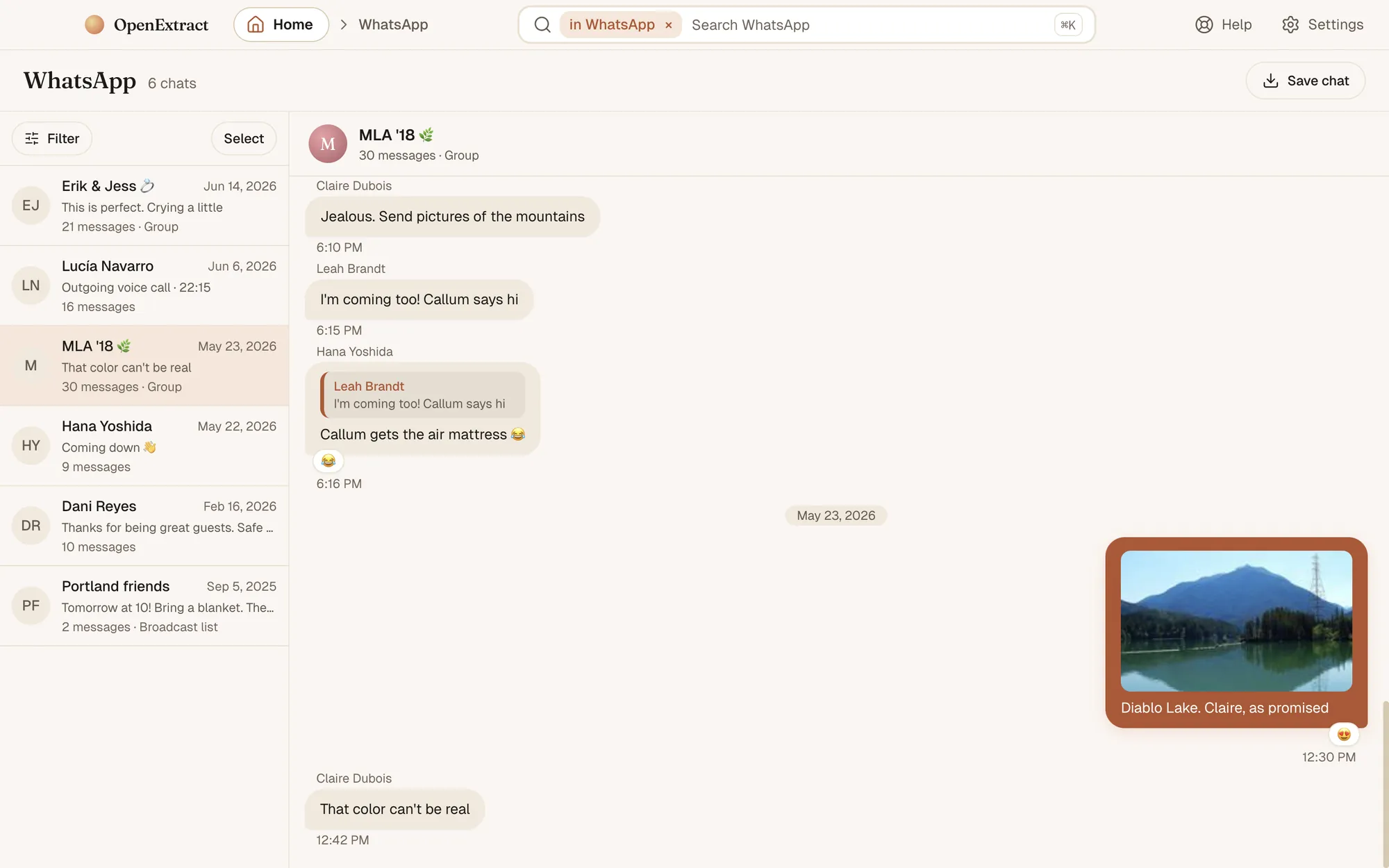
What you get
- Web page looks like the chat and opens in any browser. Photos show in place, and videos and voice messages play in the page. The files are copied into a folder beside the page, documents included, so keep the two together if you move them.
- PDF looks like a printed chat, with the photos in place. Good for printing and sharing.
- Spreadsheet (CSV) opens in Excel, Numbers or Google Sheets: one row per message with the date, who sent it, the text, the message it replies to and its reactions.
- Plain text is a list of messages, each with its date and sender, that opens anywhere.
Dates and times are in your computer's time zone. Notices such as "This message was deleted" and calls are kept in the file, in the order they arrived.
WhatsApp shows up elsewhere in OpenExtract too: in the Timeline, which lists everything in the backup by date; in the search box at the top of the backup's home page, which finds texts, WhatsApp messages, notes, calls and more at once; and on each person's page in People, matched to their texts and calls by phone number.
What it can't do
- Only what's in the backup. Photos, videos and files that WhatsApp didn't keep on the iPhone aren't in its backup. They're labelled "not in this backup" instead.
- Not WhatsApp's own iCloud backup. The chat backup WhatsApp makes to iCloud from its settings can't be opened, and nor can anything else in iCloud. OpenExtract works from a backup on your computer.
- Not with WhatsApp's end-to-end encrypted backup turned on. With that setting on, WhatsApp leaves its chats out of the iPhone's backup, so the backup has no WhatsApp to show.
- Not WhatsApp Business, and not Android. It reads the ordinary WhatsApp app from an iPhone backup.
- Older calls. Calls show in the chat from WhatsApp 2.24 (2024) on. Calls logged by older versions aren't shown yet. WhatsApp calls can also appear in the iPhone's own call history, which OpenExtract reads from encrypted backups.
- A few things aren't shown yet. Status updates aren't shown, and the Year view doesn't count WhatsApp messages yet.
- Not other chat apps. WeChat, Line, Viber, Kik, Telegram and Signal aren't read.
- It can't put chats back on a phone or into WhatsApp. The files are a copy for your computer.
- It isn't a certified document. If it's for a legal matter, read printing texts for court first; the same advice applies to WhatsApp.
Common questions
Can OpenExtract open WhatsApp's own iCloud backup? No. The chat backup WhatsApp makes from its own settings (Settings, then Chats, then Chat Backup) is kept in iCloud, and only WhatsApp can restore it. OpenExtract reads a different backup: the backup of the whole iPhone that Finder, iTunes, the Apple Devices app or OpenExtract itself saves on your computer. WhatsApp's chats are usually in that one too. The exception: if WhatsApp's end-to-end encrypted backup is turned on (Settings, then Chats, then Chat Backup), WhatsApp keeps its chats out of the iPhone's backup, and there's nothing for OpenExtract to show. To read them here, turn that off in WhatsApp and back up the iPhone again.
Do I need an encrypted backup? No. WhatsApp's chats are in ordinary backups as well as encrypted ones. If the backup is encrypted, OpenExtract asks for its password when you open it, and the password stays on your computer.
Why do some photos say "not in this backup"? Because they weren't on the iPhone when it was backed up. WhatsApp doesn't always keep every photo, video or document on the phone: one that was never downloaded, or that was deleted to free up space, isn't in the backup either. OpenExtract says so in its place, for example "Photo not in this backup", and shows everything that is there.
Does it read WhatsApp Business? No. It reads the ordinary WhatsApp app. Chats in WhatsApp Business aren't read.
Does it work with WhatsApp on an Android phone? No. OpenExtract reads iPhone backups only.
How are the people in a chat named? With the name saved in the iPhone's contacts for their number. If they aren't in the contacts, OpenExtract uses the name WhatsApp has for them, and otherwise their phone number.
Which versions of WhatsApp does it read? It's checked on real public test backups from WhatsApp 2.20 to 2.24, made on iOS 13 to 17. If a backup holds a version it can't read yet, the WhatsApp screen says so and has a button to report it.
Does anything get uploaded? No. OpenExtract reads the backup on your own computer and doesn't send it anywhere. It goes online only when you let it: to check for a new version, if you allow it (you can turn that off in Settings); to send a problem report or a thank-you, when you click Send; and on Windows, to install Apple's free Apple Devices app from Microsoft, if you ask it to, for backing up an iPhone. Nothing from inside your backup goes with any of them.
Is it really free? Yes. OpenExtract is open source under the MIT license, with no paid tier, no account and no strings attached. The code is on GitHub.