What it can't do
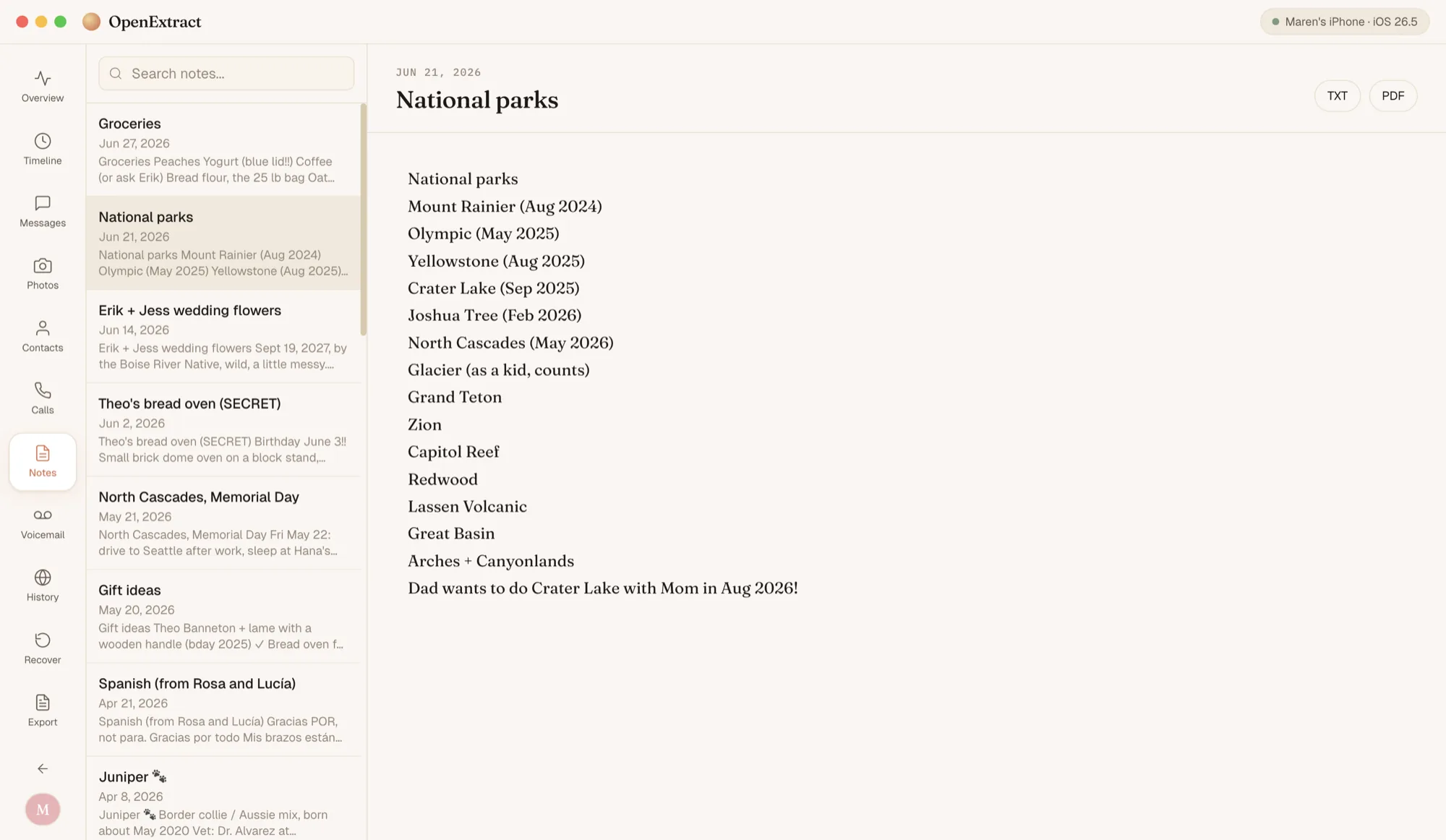
- Pictures and attachments. It reads the text of each note. Photos, drawings, scans and other attachments aren't saved, and checklists and tables come out as plain text, if at all.
- Locked notes. Notes locked with a password or Face ID stay locked; OpenExtract doesn't unlock them.
- Folders. Notes are listed together by date, not in the folders you made in the Notes app.
- Very long notes. A note longer than 20,000 characters (about 3,000 words) is cut off at that point.
- Every note as a PDF in one go. Saving everything at once makes one text file; PDFs are saved one note at a time.
- It only has what the backup has. Notes written after the backup was made aren't in it. It doesn't read iCloud, an iCloud backup, or notes kept in other apps.
Common questions
Do I need an encrypted backup for notes? No. Apple Notes are in ordinary backups as well as encrypted ones. If the backup is encrypted, OpenExtract asks for its password when you open it.
Can I save all my notes at once? Yes. Under Save to this computer on the backup's home page, Notes saves every note in the backup into one text file, each with its title and the dates it was made and last edited. From the Notes screen you can save the note you're reading as a PDF or a text file.
Are pictures and attachments saved? No. OpenExtract reads the text of each note. Photos, drawings, scanned documents and other attachments in a note aren't shown or saved, and checklists and tables come out as plain text, if at all.
Can it open locked notes? No. Notes locked with a password or Face ID are encrypted by the Notes app, and OpenExtract doesn't unlock them.
Does it work with old iPhones? Yes. It reads the notes database iPhones have used since iOS 9, and the older one from iOS 4 to 8, including backups made by iTunes years ago.
Can I search my notes? Yes. The Notes screen has a search box, and the search on the backup's home page looks through the full text of every note along with messages, calls and the rest. Notes also appear in the timeline by date.
Does anything get uploaded? No. OpenExtract reads the backup on your own computer and doesn't send it anywhere. It goes online only when you let it: to check for a new version, if you allow it (you can turn that off in Settings); to send a problem report or a thank-you, when you click Send; and on Windows, to install Apple's free Apple Devices app from Microsoft, if you ask it to, for backing up an iPhone. Nothing from inside your backup goes with any of them.
Is it really free? Yes. OpenExtract is open source under the MIT license, with no paid tier, no account and no strings attached. The code is on GitHub.