What it can't do
- Safari history from an unencrypted backup. Apple leaves it out, so there's nothing to read. Make an encrypted backup instead.
- Other browsers. It reads Safari and Firefox for iOS. Chrome, Edge, Brave and other browsers aren't shown.
- Bookmarks, tabs and passwords. It reads the pages visited, not bookmarks, the Reading List, open tabs or saved passwords.
- Cleared or private browsing. History cleared before the backup was made isn't shown, and private browsing isn't kept in history.
- Only part of the list. Saving writes every visit in the backup, whatever the list is filtered to; sort or filter the spreadsheet afterwards.
- It only has what the backup has. Pages visited after the backup was made aren't in it. It doesn't read iCloud or an iCloud backup.
Common questions
Why don't I see Safari history? Apple puts Safari's history only in encrypted backups. If the backup isn't encrypted, OpenExtract has no Safari history to show, though Firefox history can still be there. Make a new backup with encryption turned on, in OpenExtract (Back up my iPhone, then Encrypt backup), Finder, iTunes or the Apple Devices app, and open that one.
Does it read Chrome, Edge or Brave? No. It reads Safari and Firefox for iOS. History from Chrome, Edge, Brave and other browsers on the iPhone isn't shown.
What's in the saved file? One CSV spreadsheet, browser_history_export.csv, with a row per visit: the date and time (in UTC), the browser, the address, the page title, the site and, for Safari, how many times that address was visited. It opens in Excel, Numbers or Google Sheets.
Are bookmarks, open tabs or saved passwords included? No. OpenExtract reads the history of pages visited. Bookmarks, the Reading List, open tabs and saved passwords aren't shown or saved.
Can it get back history I cleared? No. History you cleared in Safari or Firefox before the backup was made isn't shown, and pages opened in private browsing aren't kept in history in the first place.
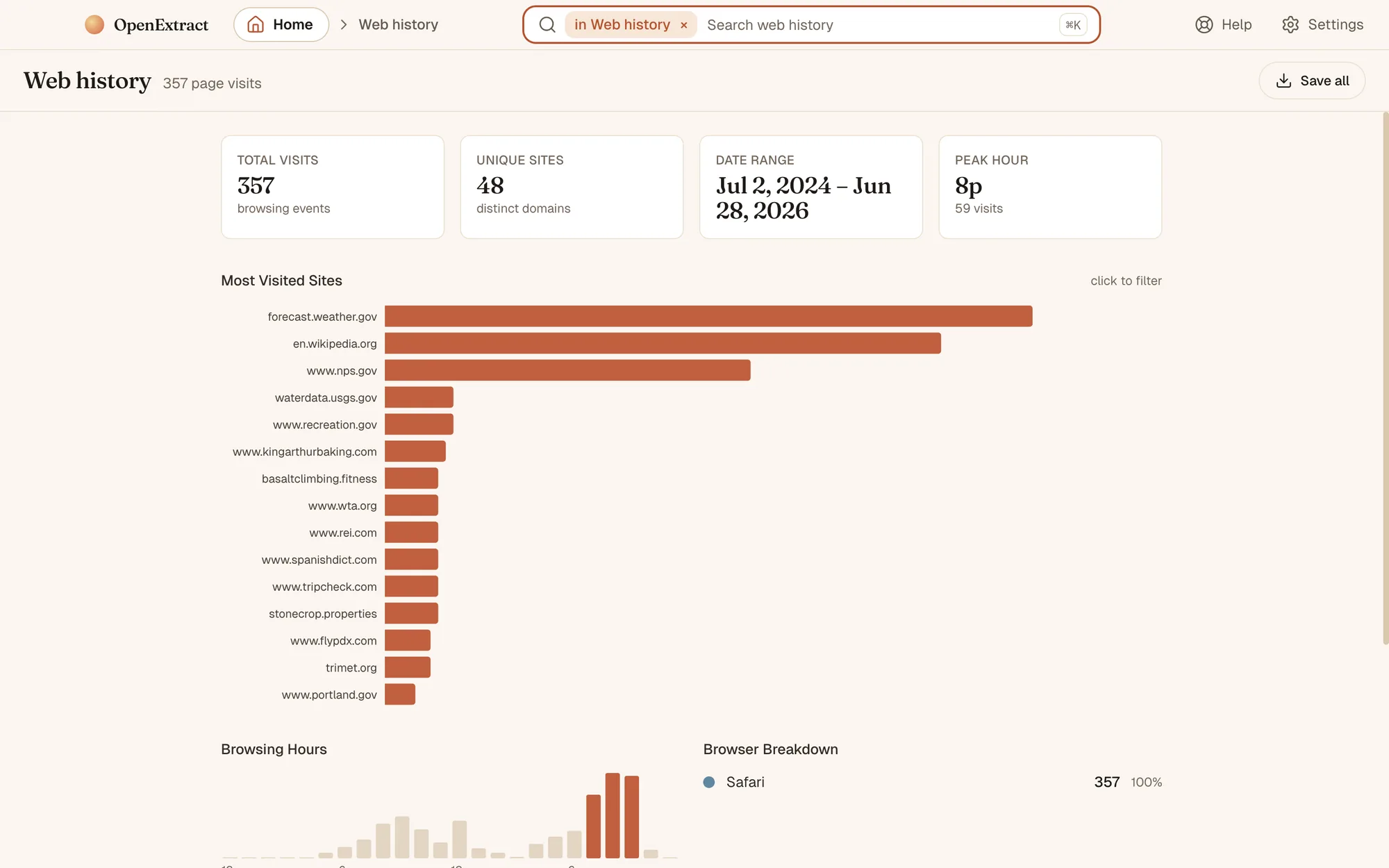
Can I search the history? Yes. The search box finds pages by title, address or site, and the search on the backup's home page looks through web history along with messages, notes and the rest. Visits also appear in the timeline by date.
Does anything get uploaded? No. OpenExtract reads the backup on your own computer and doesn't send it anywhere. It goes online only when you let it: to check for a new version, if you allow it (you can turn that off in Settings); to send a problem report or a thank-you, when you click Send; and on Windows, to install Apple's free Apple Devices app from Microsoft, if you ask it to, for backing up an iPhone. Nothing from inside your backup goes with any of them.
Is it really free? Yes. OpenExtract is open source under the MIT license, with no paid tier, no account and no strings attached. The code is on GitHub.